
In This Article
Landing at Ben Gurion with no data is usually not a phone problem. It is a timing problem. Understanding eSIM activation time before you travel helps you install your plan calmly, connect when you need it, and avoid searching for Wi-Fi just to get directions, message family, or call a local number.
For most travelers, the setup itself takes only a few minutes. The full process can take longer if the eSIM is installed too late, the phone is locked, mobile data settings are incorrect, or the device has not yet connected to an Israeli network. The good news: most delays are easy to prevent before departure.
What eSIM Activation Time Actually Means
“Activation” can describe three different stages, and separating them makes the process much clearer.
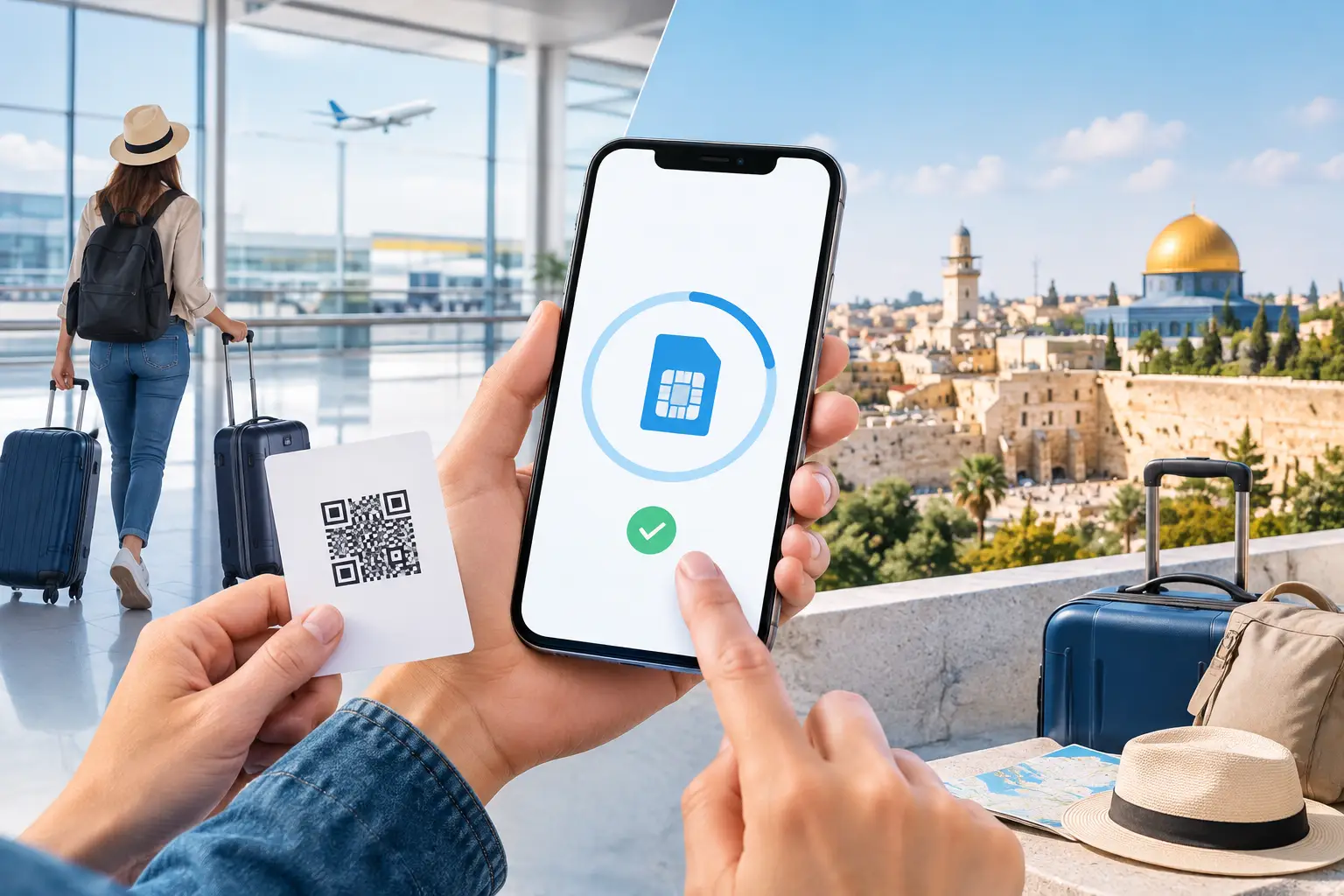
First, there is installation. This is when you scan a QR code or use manual details to add the eSIM plan to your phone. You can usually do this at home while connected to reliable Wi-Fi. Your phone may show the new cellular plan immediately, but that does not always mean it is ready to use mobile service.
Next comes network registration. Once you arrive in Israel and turn on the eSIM line, your phone searches for an available supported network. This is the step that commonly happens after landing. Depending on your phone, location, and network conditions, registration may be nearly immediate or take several minutes.
Finally, there is service readiness. Your phone needs the correct line selected for mobile data, data roaming enabled for that travel eSIM when required, and the correct network settings. If your plan includes a real Israeli +972 number, local calls and SMS may also need a moment to register after the line connects.
In other words, a QR code scan is not always the same as live service. Installing early gives you time to fix settings without the pressure of arriving in a new country.
Typical eSIM Activation Time in Israel
A properly installed eSIM often connects shortly after the phone reaches Israeli mobile coverage. At an airport, this may happen while you are still in the terminal or soon after you switch off airplane mode. In busy travel periods, on a newly restarted phone, or when the device is searching between networks, it can take longer.
Plan timing also matters. Some prepaid travel eSIMs begin their validity period when they first connect to a supported network, while others may have separate activation rules. Review the plan instructions before installation so you know whether to add the eSIM before departure or wait until you arrive.
For an eSIM Israel plan, the practical approach is simple: install it before your flight, then turn on the line and use it for mobile data after you land. This gives you the best chance of being ready for maps, ride services, messaging, and local calls without an airport SIM purchase.
Do not judge activation too quickly. If the signal bars appear but data does not work in the first minute, give the phone a short moment to complete registration. Avoid repeatedly deleting and reinstalling the eSIM unless support specifically tells you to do so. A deleted eSIM may not always be recoverable from the same QR code.
Set Up Your eSIM Before You Travel
The fastest arrival experience starts before you leave. Connect your phone to stable Wi-Fi, make sure it has enough battery, and complete the installation in a place where you can read the instructions carefully.
Start by confirming that your phone supports eSIM and is carrier-unlocked. A compatible phone that remains locked to a home carrier may reject the new cellular plan or fail to connect. If you are unsure, check your device’s cellular settings or confirm the lock status with your current carrier before purchasing.
When you receive your QR code, add the eSIM through your phone’s cellular or mobile network settings. Give the line a recognizable label such as “Israel Travel” or “Israel Data.” This small step prevents confusion later if you keep your home line active for calls or verification messages.
After installation, leave the travel line turned off if your plan instructions recommend activating only on arrival. Then, once you land in Israel, switch it on and set it as the line for cellular data. If your phone has a setting called “Allow Cellular Data Switching,” consider turning it off. That helps prevent your device from quietly using data from your home line and creating roaming charges.
You may also need to enable data roaming on the travel eSIM itself. This can sound backward, but it is a normal setting for many travel eSIM configurations. Enable roaming only on the Israel eSIM, not on your primary home line unless you intend to use your home carrier’s international service.
Why an eSIM Can Take Longer to Connect
Most connection issues come down to a few practical causes. The first is an incorrect data-line selection. Your eSIM can show signal while your phone is still trying to use your regular line for data. Check which line is selected under Cellular Data or Mobile Data.
The second is a network selection issue. Automatic network selection is usually the right choice because it lets the phone register with an available supported Israeli network. If automatic selection does not work after a few minutes, follow your plan instructions for manual network selection if that option is provided.
The third is device setup. Restarting the phone after arrival can refresh its network search. Turning airplane mode on for about 10 seconds and then off can do the same. These steps are more useful than continuously toggling settings at random.
Location can affect timing too. Mobile service is generally strongest in populated areas, airports, cities, and major travel routes, but signal can be weaker in underground spaces, elevators, remote areas, or restricted locations. If you have just landed or stepped off a flight, move to an open area of the terminal and allow the phone another moment to register.
A Quick Check If Your eSIM Is Not Working
If you have waited a few minutes and still cannot get online, check the basics in order. Confirm the eSIM line is turned on, it is selected for mobile data, and data roaming is enabled on that line if required. Then make sure airplane mode is off and restart your phone.
If the device still has no service, open network selection and return it to automatic. If you see a supported network but cannot connect, do not repeatedly scan the QR code or remove the eSIM. Keep your installation details available and contact the plan’s customer support with your order information, device model, and a screenshot of the cellular settings if requested.
Frequently Asked Questions About eSIM Activation Time
Can I install my eSIM before I fly to Israel?
Usually, yes. Installing before departure is the safest option because you can use home Wi-Fi and take your time. Follow your specific plan instructions about when to turn on the line and when the plan’s validity begins.
Will my eSIM work as soon as the plane lands?
It can connect soon after landing once the phone has access to an Israeli mobile network and the correct settings are enabled. You may need to wait until you are inside the terminal, turn off airplane mode, and allow the device a few minutes to register.
Do I need Wi-Fi to activate an eSIM?
You typically need an internet connection to install the eSIM from a QR code or manual details. Wi-Fi is the simplest option before travel. After installation, the eSIM uses cellular service once it connects in Israel.
Can I keep my regular number active?
Yes, many dual-SIM phones let you keep your home line active while using the Israel eSIM for data. Just review your home carrier’s roaming settings and make sure the travel eSIM is selected for cellular data to avoid unexpected charges.
A few minutes of setup before departure can save a frustrating first hour after arrival. Install your eSIM with Wi-Fi, label the line clearly, and check your data settings before boarding. Then when Israel comes into view, your phone has one job: connect.
eSIM Israel Team
Last updated