
In This Article
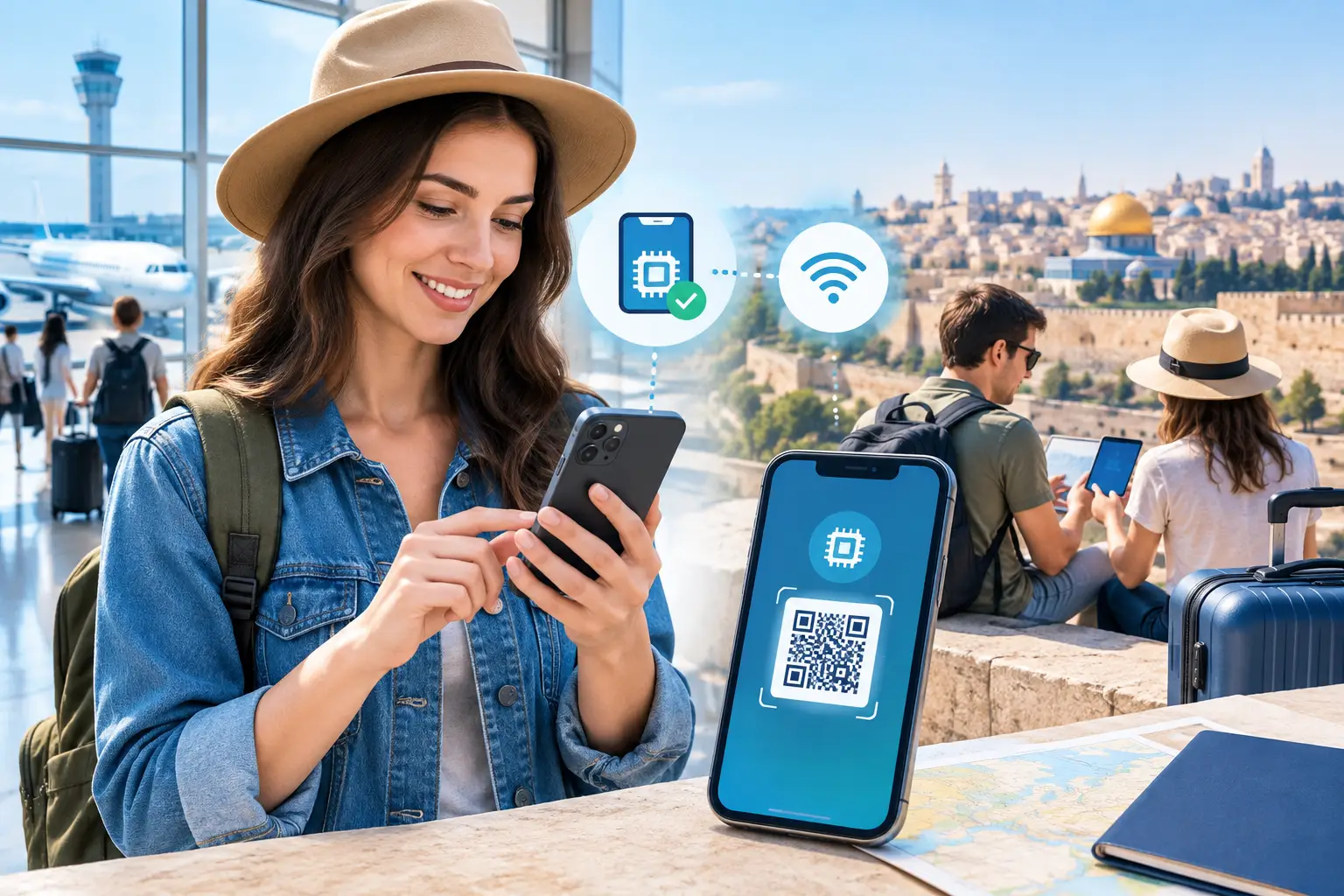
Your phone has data, but your laptop, tablet, or travel companion does not. That is when travelers ask: can eSIM share mobile hotspot data? In most cases, yes. An eSIM can power your phone’s Personal Hotspot just like a physical SIM can, provided your phone, plan, and carrier settings allow tethering.
For a trip to Israel, hotspot access can be the difference between working from a hotel lobby, navigating with a Wi-Fi-only tablet, or helping a family member get online without buying a second plan. The key is knowing what your prepaid eSIM includes before you rely on it.
Can eSIM Share Mobile Hotspot Data?
An eSIM is simply a digital version of a SIM card. It connects your phone to a mobile network, gives it access to the data included in your plan, and can support calls or texts when those features are included. It does not inherently block hotspot use.
When you turn on Personal Hotspot on an iPhone or Mobile Hotspot on Android, your phone shares its cellular data connection with another device through Wi-Fi, Bluetooth, or USB. Your laptop or tablet uses that connection as if it were connected to a regular Wi-Fi network.
The more accurate question is not whether an eSIM can share a hotspot. It is whether your particular eSIM plan permits hotspot use and whether your phone is configured correctly. Many travel eSIM plans support tethering, but it should never be assumed. Check the plan details before purchase, especially if hotspot access is essential for work or for connecting multiple devices.
What Determines Whether Hotspot Will Work?
Three things determine your result: your phone’s eSIM compatibility, the plan’s hotspot policy, and your device settings.
First, your phone must support both eSIM and mobile hotspot functionality. Most recent unlocked iPhones, Samsung Galaxy devices, Google Pixel phones, and other modern smartphones do. A carrier-locked phone can create problems because it may not accept a travel eSIM, even if the phone technically supports eSIM.
Second, the prepaid plan must allow tethering. Some providers treat hotspot data exactly like normal phone data. Others allow it but apply a separate cap, slower speeds after a certain amount of use, or restrictions based on the network configuration. For travelers, this is the detail that matters most. A large data allowance can disappear quickly when it is shared with a laptop running cloud backups, video calls, or software updates.
Third, your phone has to use the eSIM line for cellular data. If you keep your home line active for data by mistake, you could use expensive international roaming instead of your Israel travel plan. Before you start sharing, confirm that the eSIM is selected as the cellular data line and that data roaming is enabled only when the eSIM instructions require it.
How to Set Up Hotspot on an Israel eSIM
Set up your eSIM before departure when possible. Install it using the QR code or activation instructions, then keep the line ready to connect after arrival. Once you land in Israel and your phone connects to the local network, test data before you need it.
On an iPhone, open Settings, choose Cellular or Mobile Data, and select your Israel eSIM as the line for Cellular Data. Then go to Personal Hotspot and turn on Allow Others to Join. You can set a Wi-Fi password and connect your laptop, tablet, or another phone.
On Android, wording differs by manufacturer, but the path is usually Settings, Connections or Network & Internet, then Mobile Hotspot and Tethering. Turn on Mobile Hotspot, create a password, and connect the other device to the hotspot name shown on your screen.
If the hotspot switch is missing, grayed out, or shows an error, do not assume the eSIM has failed. Restart the phone, confirm cellular data is working on the eSIM itself, and review the activation settings supplied with the plan. Some mobile configurations require a specific APN setting before hotspot sharing becomes available.
It is smart to test the connection with one device first. Open a basic webpage, send a message, and check maps. Once it works, you can rely on it for practical moments such as ordering a ride at Ben Gurion Airport, opening a work document in Tel Aviv, or getting directions on a Wi-Fi-only tablet in Jerusalem.
How Much Data Does Hotspot Use?
Hotspot data comes out of the same data allowance used by your phone unless your plan says otherwise. The hotspot feature itself does not create extra data. It simply distributes your existing connection.
Light tasks are usually manageable. Email, messaging, maps, boarding passes, browsing, and short document edits use relatively little data. A laptop becomes far more demanding when it automatically syncs photos, downloads system updates, backs up files, or joins video meetings with high-definition video enabled.
To make a prepaid plan last, turn off automatic updates and cloud backups on the connected device. Download entertainment before leaving Wi-Fi. Set your laptop’s network connection to metered if that option is available. For video calls, lower the video quality when possible and avoid leaving several devices connected just because they can be.
This is especially relevant for families. Sharing one phone’s connection with two or three devices is convenient for a short task, but it is not always the best value for a full day of streaming, gaming, or remote work. Separate data plans may be more practical when several people need consistent access at the same time.
Hotspot Speed, Battery, and Coverage Expectations
A hotspot is only as fast as the cellular connection reaching your phone. When your eSIM connects to a strong 4G or 5G signal, browsing and everyday work can feel quick. In busier areas, indoors, or locations with weaker reception, speeds can vary. 5G availability depends on the network, location, phone, and plan, so it should be viewed as a benefit where available, not a promise everywhere.
Hotspot use also drains your phone battery faster than ordinary browsing. The phone is maintaining a cellular connection while broadcasting Wi-Fi to another device, which uses significant power. Carry a power bank on long travel days and keep your phone plugged in when you are using hotspot for work.
For the most stable connection, keep the phone near the device you are connecting and avoid placing it in a bag or pocket while tethering. USB tethering can be a useful alternative for a laptop because it can provide a direct connection while charging the phone. It is less convenient than Wi-Fi hotspot, but often makes sense during longer work sessions.
Common Hotspot Problems and Fast Fixes
If your phone has data but another device cannot connect, start with the basics. Turn the hotspot off and back on, then forget the hotspot network on the connected device and reconnect using the current password. Restarting both devices often clears a temporary issue.
If the connected device joins the hotspot but has no internet, confirm that your eSIM is selected for cellular data and that the data plan is active. Check whether mobile data works directly on the phone. If it does not, the issue is likely the eSIM connection or settings rather than the hotspot feature.
If you can browse but the connection is slow, disconnect unused devices and pause data-heavy background activity. Move to an area with better signal if possible. Network conditions can change by neighborhood, building, and time of day.
A real Israeli +972 number is useful for local calls, SMS, and services that request a local number, but it is separate from hotspot capability. Hotspot access depends on the data plan and device configuration, not on whether the eSIM includes a local number.
Choosing an eSIM Plan When Hotspot Matters
If you expect to tether, choose based on more than the headline data amount. Confirm that hotspot support is included, look at the validity period, and consider the type of work or travel you will actually do. A visitor checking email and maps has very different needs from a business traveler who must connect a laptop every afternoon.
eSIM Israel offers prepaid tourist eSIM options designed for local connectivity, with selected plans that include hotspot support. Review the individual plan features before checkout so your allowance, local calling needs, SMS needs, and hotspot expectations match.
Your phone can be a reliable travel connection for the devices around it, but treat hotspot data as a shared resource. Set it up before the moment you urgently need it, protect it with a password, and use it deliberately. That gives you a practical backup when public Wi-Fi is unavailable or not worth trusting.
eSIM Israel Team
Last updated